
How I Use Obsidian and Cursor Together
NOTE
Key takeaway: simple systems and clear defaults make execution easier.

Photo from Unsplash.
How I Use Obsidian and Cursor Together
I use Cursor for more than code. It's my assistant for managing and improving my Obsidian knowledge graph. Most people think of Cursor as a code editor, but it's become essential for how I work with my second brain.
The Setup: Cursor has access to my entire Obsidian vault. It reads my notes, understands the structure, and helps me maintain and improve my knowledge graph. It's like having an assistant that knows everything I've written and can help me make sense of it.
The Reality: Cursor isn't just checking my notes—it's actively improving them. It reviews structure, suggests connections, documents my work, and answers questions about my knowledge base. It's the bridge between my second brain and my daily work.
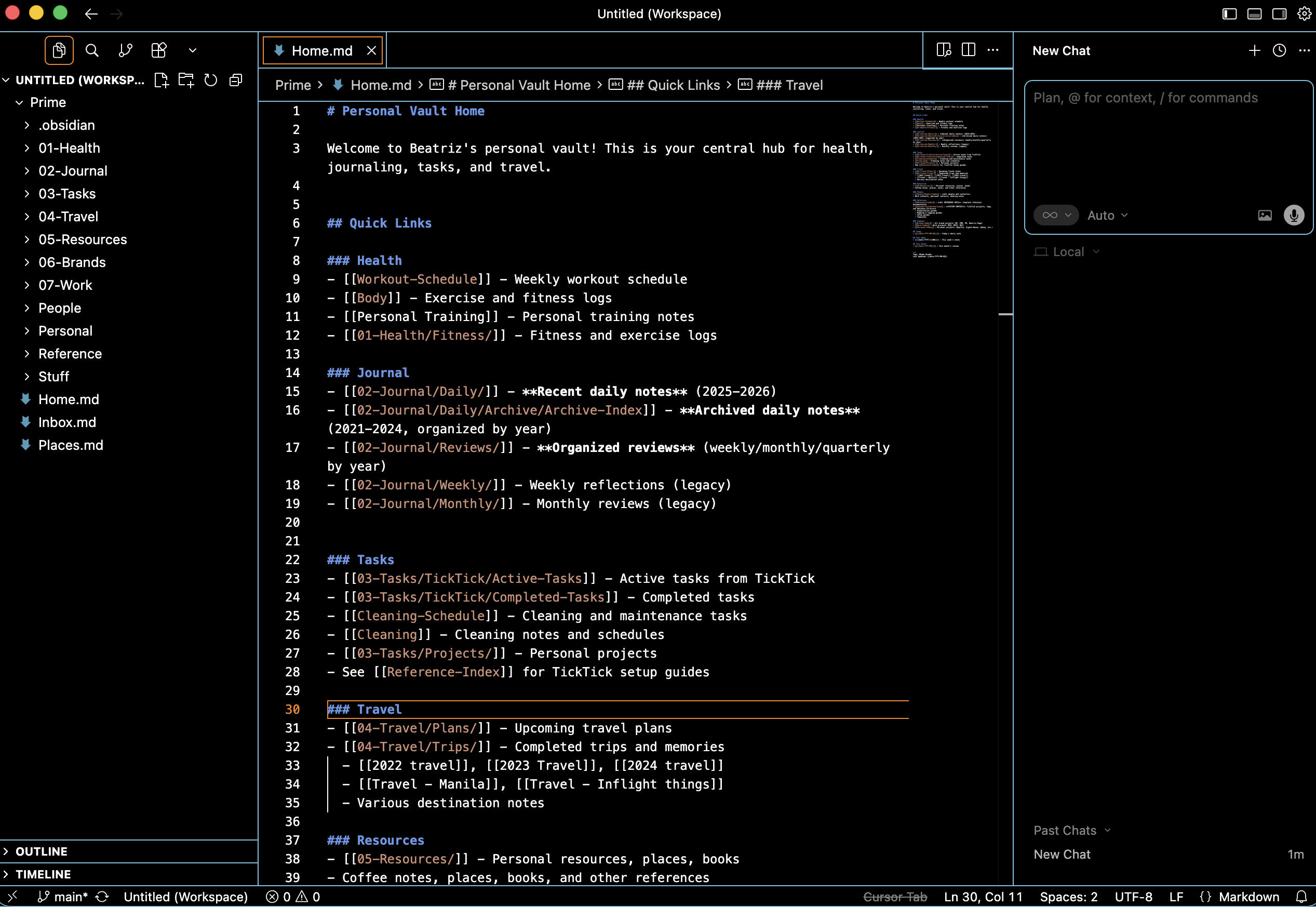 Cursor and Obsidian working together - showing Cursor interface with Obsidian vault open.
The Four Ways I Use Cursor with Obsidian
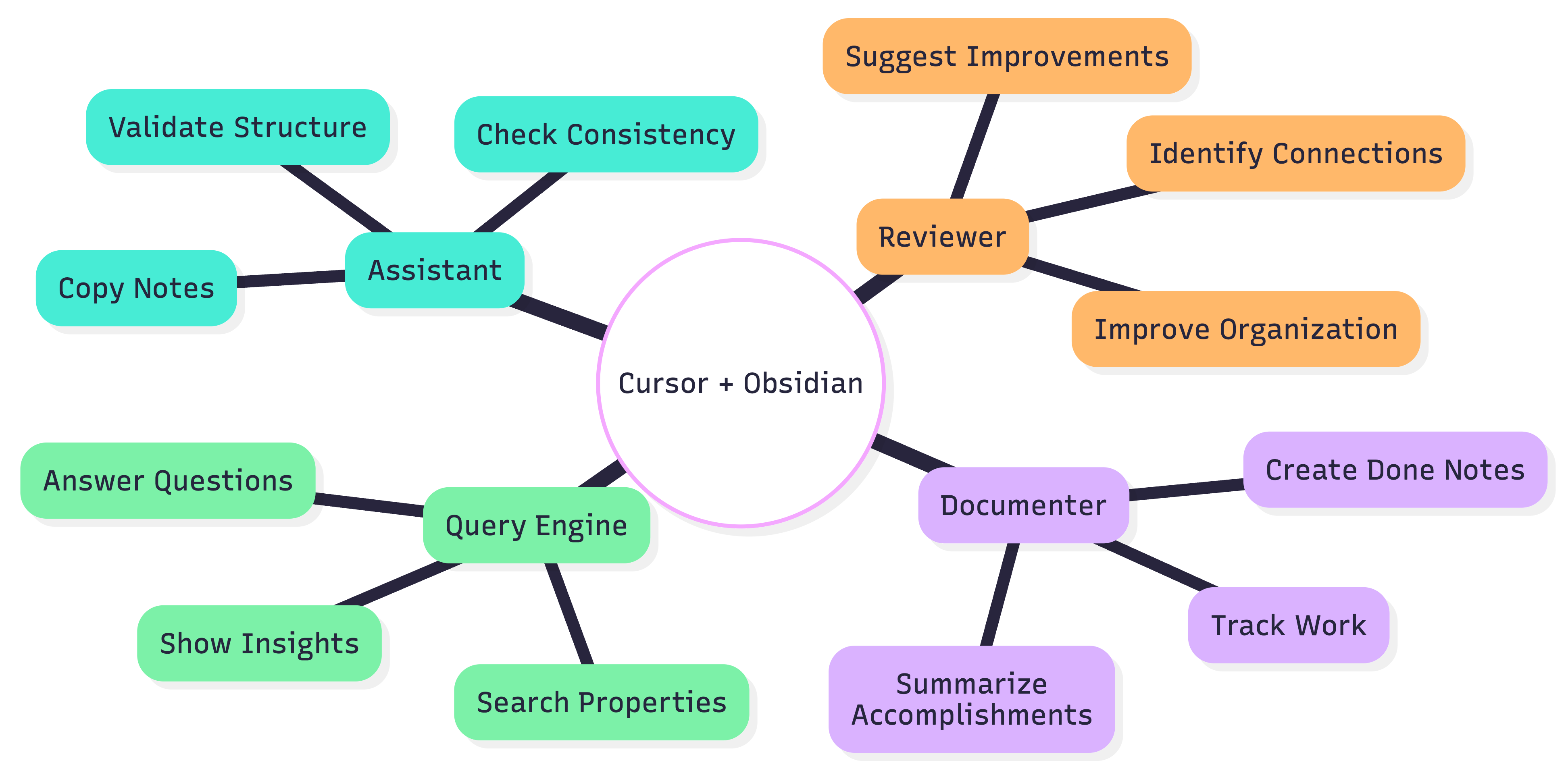 Cursor and Obsidian four roles mindmap - showing Assistant, Reviewer, Documenter, and Query Engine roles.
1. Cursor as My Assistant: Copying and Checking
What It Does:
- Reads my Obsidian notes
- Checks for consistency and structure
- Copies relevant information when I need it
- Validates that my notes make sense
Why It Works:
- Cursor has context of my entire vault
- It can see patterns I might miss
- It catches inconsistencies before they become problems
- It saves me time on manual review
Example Use Cases:
- "Check if my daily journal template is consistent across all notes"
- "Copy the key points from my client meeting notes into this email"
- "Verify that all my project notes have the same frontmatter structure"
- "Check if I've already written about this topic before"
The Reality: Cursor reads my Obsidian vault like I would, but faster. When I need to check something or copy information, Cursor can find it instantly. It's like having a perfect memory of everything I've written.
2. Structure Review and Improvement Suggestions
What It Does:
- Reviews my notes structure
- Suggests improvements to make my graph more impactful
- Identifies missing connections
- Recommends better organization
Why It Works:
- Cursor sees the big picture of my knowledge graph
- It can identify patterns and gaps
- It suggests connections I might not see
- It helps me build a more useful second brain
Example Use Cases:
- "Review my notes structure and suggest improvements"
- "What connections am I missing in my knowledge graph?"
- "How can I make this note more discoverable?"
- "Suggest better tags or links for this note"
The Reality: Cursor doesn't just read my notes—it actively helps me improve them. It sees patterns I miss and suggests connections that make my knowledge graph more useful. It's like having a knowledge management consultant that knows my entire system.
3. Documenting Work and Creating Daily "Done" Notes
What It Does:
- Documents work I do with Cursor agents (outside Obsidian)
- Copies highlights and files created
- Creates a daily "done" note in Obsidian
- Tracks what I've accomplished
Why It Works:
- Cursor knows what I've worked on
- It can summarize my work automatically
- It creates consistent daily notes
- It keeps my Obsidian vault up to date
Example Use Cases:
- "Create a daily done note with everything I worked on today"
- "Document the code changes I made and add them to my daily note"
- "Summarize the files I created today and add them to Obsidian"
- "Track my progress on this project in my daily notes"
The Reality: I do a lot of work outside Obsidian—code, automation, content creation. Cursor tracks what I've done and automatically documents it in Obsidian. It's like having a personal assistant that keeps my second brain updated without me having to think about it.
4. Querying My Knowledge Base (Without Creating Notes)
What It Does:
- Answers questions based on my notes
- Queries properties and linkages
- Shows me insights from my knowledge graph
- Doesn't create new notes—just answers
Why It Works:
- Cursor can search across all my notes
- It understands properties and relationships
- It can answer complex questions
- It gives me insights without cluttering my vault
Example Use Cases:
- "What are my favorite coffee shops?" (based on properties in my notes)
- "Where do I spend most of my time?" (based on location tags)
- "What projects am I working on this month?" (based on date properties)
- "Who have I met with recently?" (based on people tags)
The Reality: Cursor can answer questions about my life and work by querying my Obsidian vault. It doesn't create new notes—it just shows me answers based on what I've already written. It's like having a personal search engine for my second brain.
How It Works in Practice
The Daily Workflow
Morning:
- Cursor reviews my notes structure
- It suggests improvements or connections
- It checks for consistency
During Work:
- I work on projects (code, content, automation)
- Cursor tracks what I'm doing
- It documents highlights automatically
End of Day:
- Cursor creates a "done" note
- It summarizes what I accomplished
- It updates my Obsidian vault
When I Need Information:
- I ask Cursor questions about my notes
- It queries my knowledge graph
- It gives me answers without creating clutter
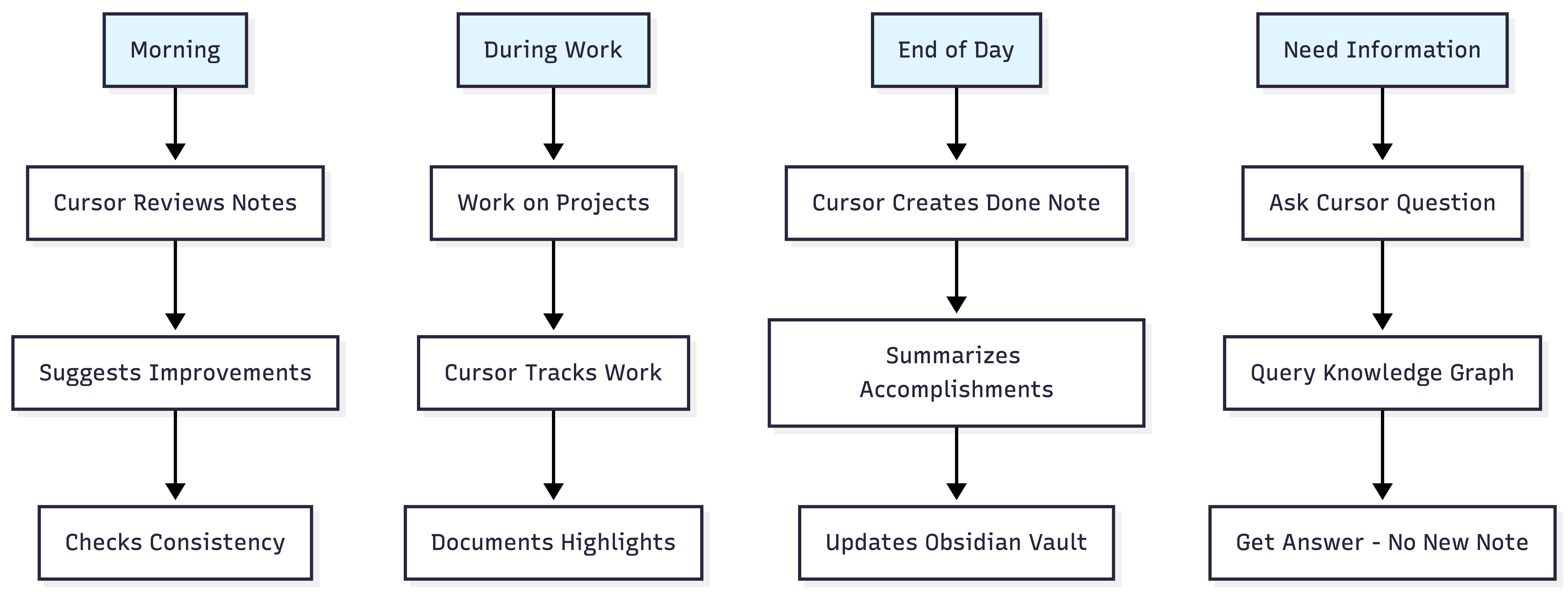 Daily workflow flowchart showing Morning, During Work, End of Day, and Need Information flows.
Why This Works
Context Awareness
Cursor Knows Everything:
- It has access to my entire Obsidian vault
- It understands my note structure
- It sees patterns and connections
- It remembers what I've written
The Benefit:
- No need to manually search
- Cursor finds information instantly
- It suggests connections I might miss
- It helps me build a better knowledge graph
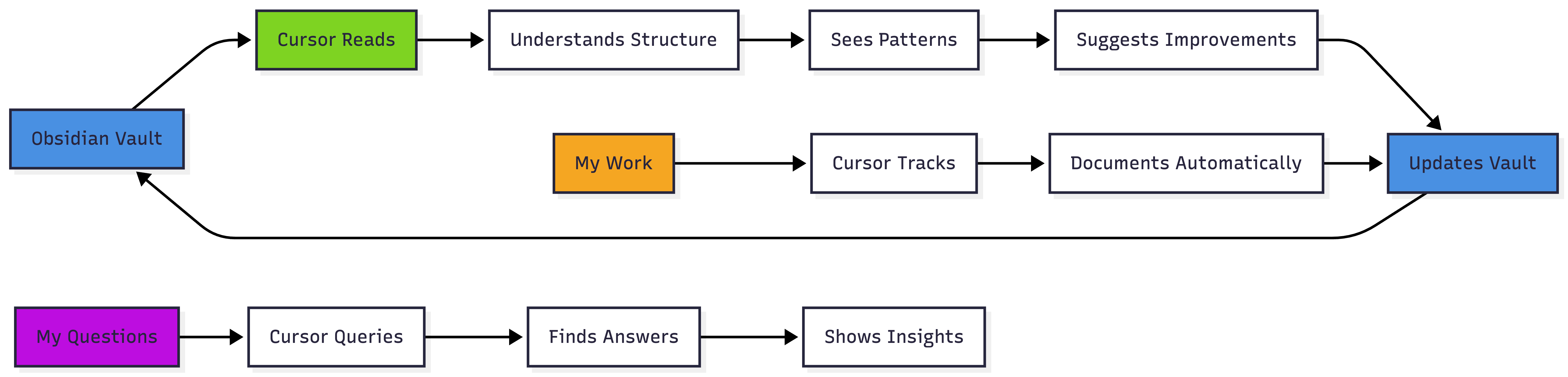 Why it works flowchart showing Obsidian Vault flow, Work tracking, and Query flow.
Active Improvement
Cursor Doesn't Just Read:
- It reviews and suggests improvements
- It identifies missing connections
- It helps me organize better
- It makes my notes more useful
The Benefit:
- My knowledge graph gets better over time
- I catch issues before they become problems
- I discover connections I didn't see
- My second brain becomes more valuable
Automatic Documentation
Cursor Tracks My Work:
- It knows what I've done
- It documents automatically
- It creates consistent notes
- It keeps my vault updated
The Benefit:
- No manual documentation needed
- Consistent daily notes
- Complete work history
- Easy to review what I've done
Query Without Clutter
Cursor Answers Questions:
- It searches my notes intelligently
- It understands properties and relationships
- It gives me insights
- It doesn't create unnecessary notes
The Benefit:
- Get answers without creating clutter
- Discover insights from my notes
- Query my knowledge graph easily
- Keep my vault clean and organized
Common Questions
Do you need Cursor for this?
- Not necessarily, but it makes it much easier
- Cursor's context awareness is what makes it powerful
- Other AI tools could work, but Cursor is best for file-based work
Does this create a lot of notes?
- No—Cursor only creates notes when I ask it to
- Most queries just show answers, not new notes
- Daily "done" notes are the only automatic notes
What if Cursor makes mistakes?
- I review suggestions before implementing
- Cursor is an assistant, not a replacement for my judgment
- I always have final say on changes
Is this worth the setup?
- Yes—it saves me hours every week
- My knowledge graph is better organized
- I can find information instantly
- It's like having a personal assistant for my second brain
The Bottom Line
The Setup:
- Cursor has access to my Obsidian vault
- It reads, reviews, and improves my notes
- It documents my work automatically
- It answers questions about my knowledge base
The Four Uses:
- Assistant: Copying and checking notes
- Reviewer: Suggesting structure improvements
- Documenter: Creating daily "done" notes
- Query Engine: Answering questions without creating clutter
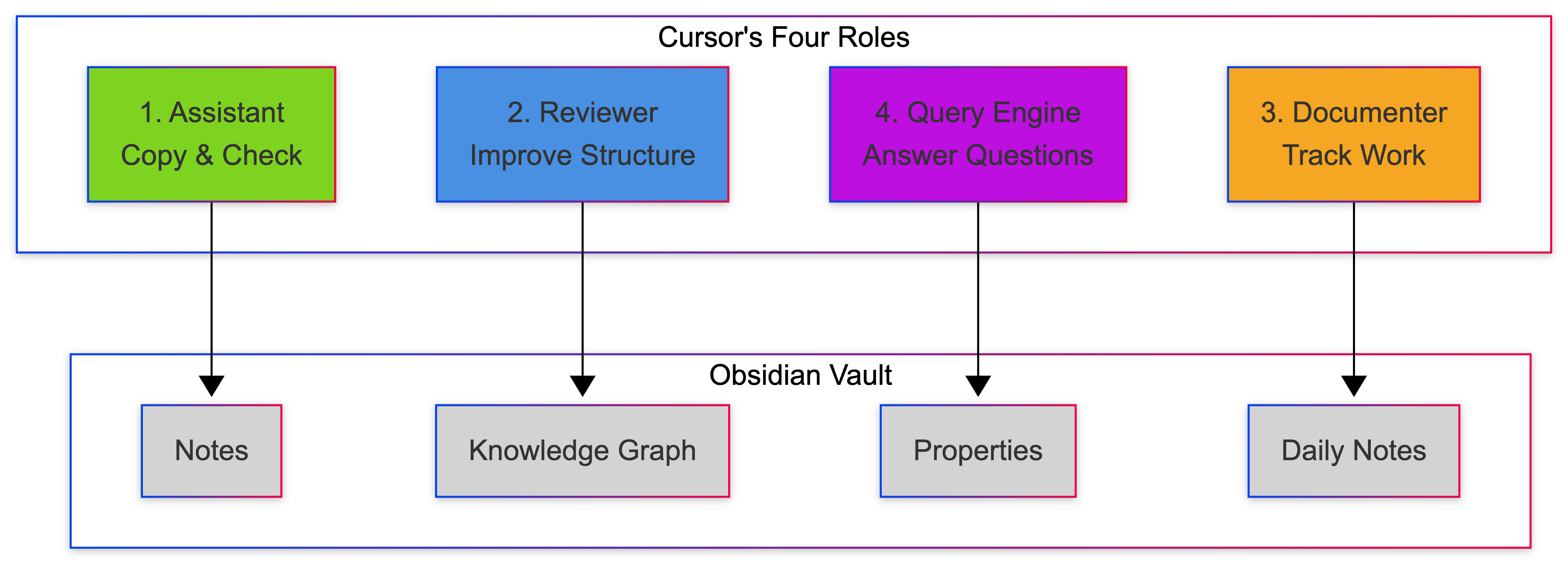 Cursor's four roles diagram showing connections between roles and Obsidian Vault components.
The Reality: Cursor isn't just for code—it's my assistant for managing and improving my Obsidian knowledge graph. It saves me time, helps me build a better second brain, and makes my notes more useful. It's the bridge between my knowledge and my daily work.
Key Insight: Cursor's context awareness is what makes this powerful. It knows my entire vault, understands my structure, and can help me improve it. It's like having a knowledge management consultant that knows everything I've written and can help me make sense of it.
The Value: This setup saves me hours every week. My knowledge graph is better organized, I can find information instantly, and my notes are more useful. It's worth the setup time to have an assistant that actively helps me build a better second brain.
Want to set this up yourself? Make sure Cursor has access to your Obsidian vault, and start asking it questions about your notes. The more you use it, the more useful it becomes.